CONTACT
Vedic Insight Support
Contact us for help with the app, purchases or a technical issue.
support@kundalidarpan.comLearn how to use Vedic Insight on Mac, or contact us about a technical issue.
Contact us for help with the app, purchases or a technical issue.
support@kundalidarpan.comAn uncertain birth time can affect the Ascendant, houses and divisional charts.
Use the layout control to choose Circular or Square. Use the chart menu for D1, Moon Rashi, Bhav Chalit or an available divisional chart. Bhav Chalit requires the necessary saved house geometry.
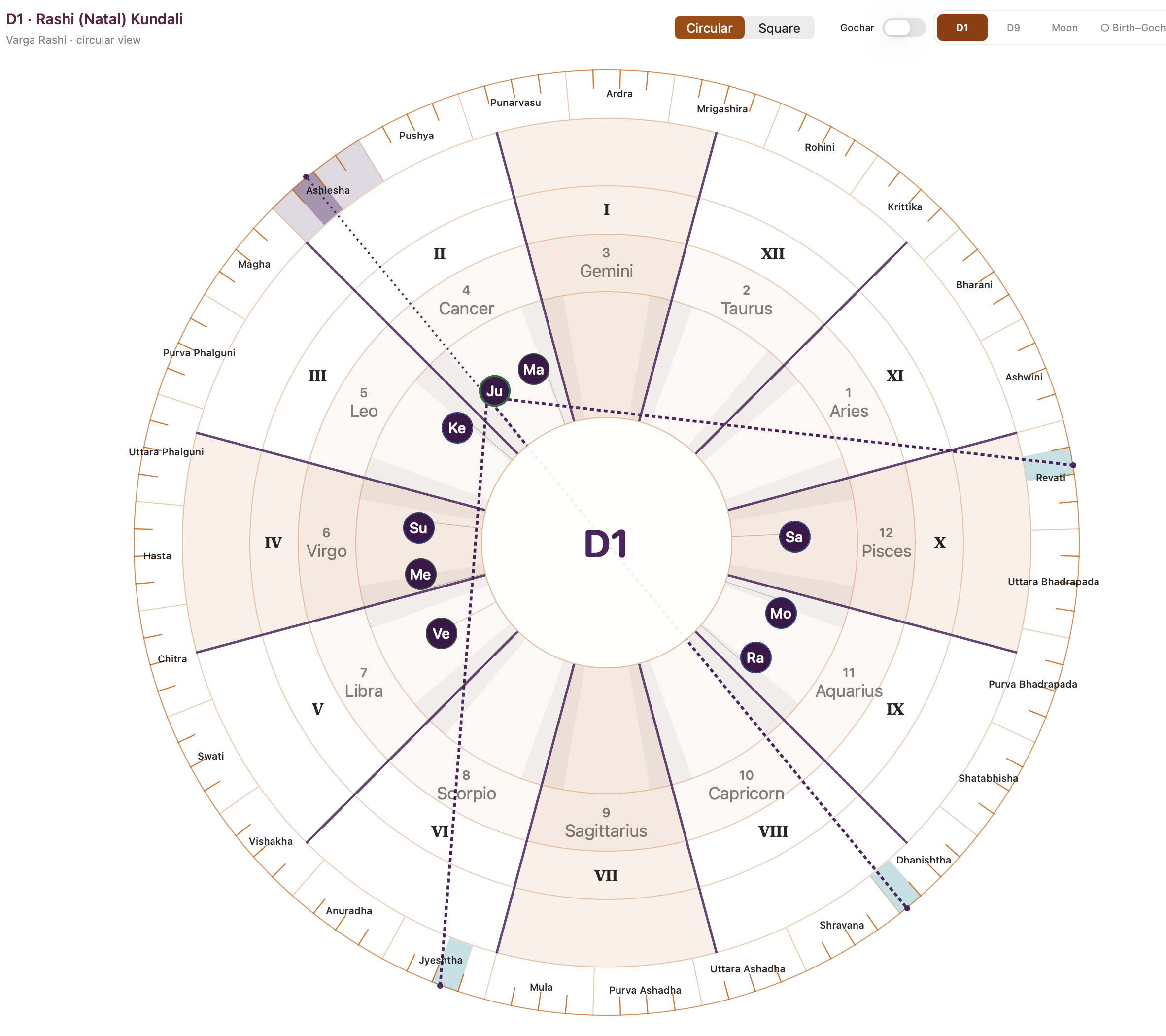
If planets overlap, open the numbered group marker and select a planet. Select the central chart hub to clear its highlights.
Roman numerals identify houses in Circular charts; Rashi numbers identify zodiac signs. Dashed planet outlines indicate retrograde motion. Where sign relationships are shown, green indicates a friendly sign, red an enemy sign and blue a neutral sign.
On macOS, birth planets use dark purple fills and Gochar planets use dark blue fills. Read the selected planet's details for its full status.
Displayed times use the selected location's time zone. A standalone Gochar chart uses the Ascendant calculated for that selected moment and place.
Choose Birth–Gochar comparison in the saved Kundali workspace where available, then select a transit time. Birth positions remain tied to the saved Kundali while Gochar positions follow the selected time.
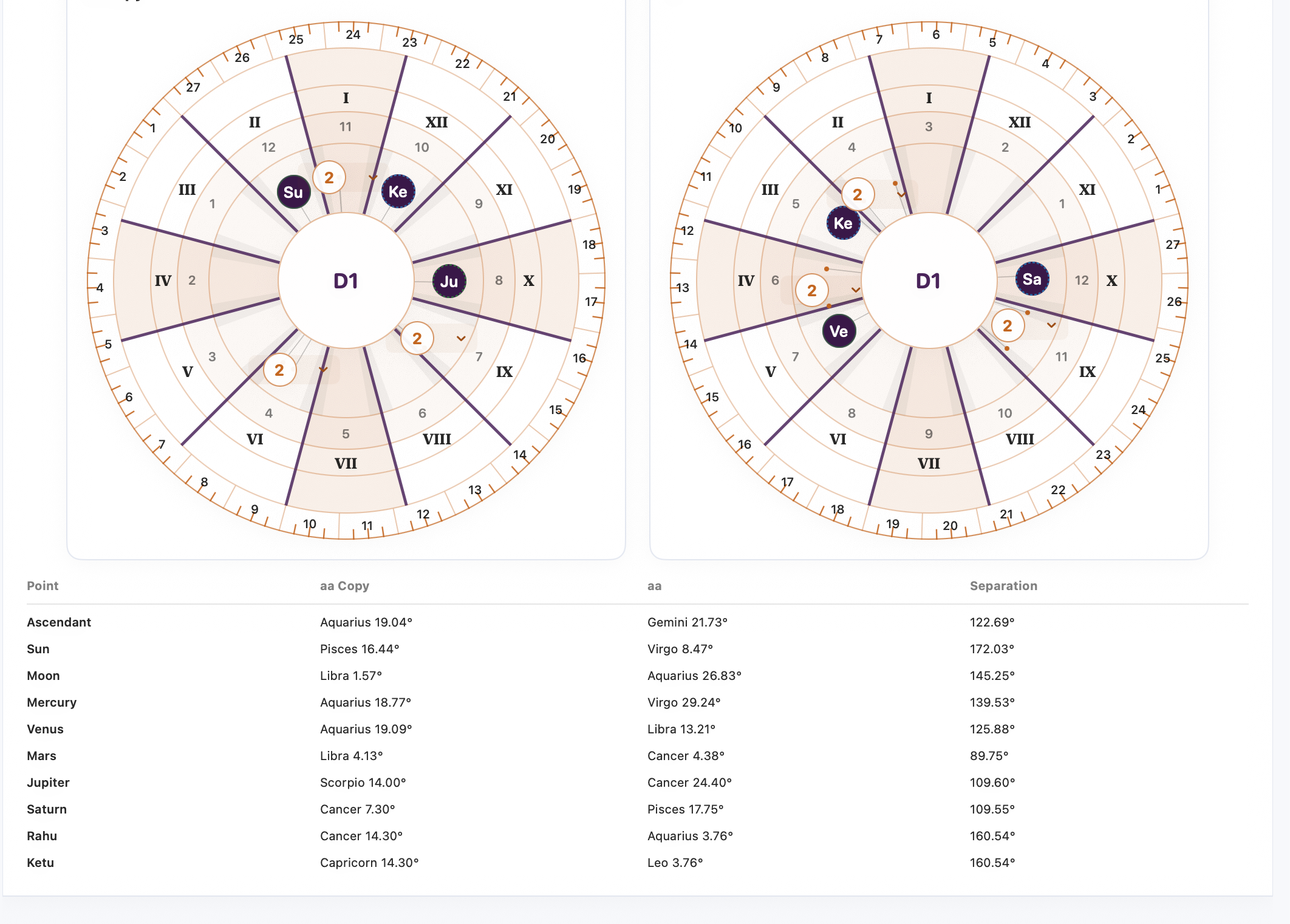
This is a technical comparison of chart data.
Open the calendar or Patro workspace for available Panchanga information, including Tithi, Nakshatra, Yoga and Karana. Check the selected date, place and time zone.
Samayarekha shows calculated Mahadasha, Antardasha and Pratyantardasha periods. Select a period to inspect available sub-period details.
On macOS, open More → Data Management and choose Backup.
Choose a save destination and keep the .jyotishbackup file safe. It may contain personal birth details.
Choose Restore in Backup and Restore or Data Management, select your .jyotishbackup file, and review the integrity check. Review Merge or Replace carefully before confirming; Replace can replace existing app data.
Saved Kundalis, notes and tags are stored locally. You choose where backups and exports go. Deleting a Kundali does not delete copies you previously exported or shared.
The Free version allows two saved Kundalis including the sample chart. Chart types and calculation and study tools are available in Free. While active, Pro removes the saved-Kundali limit and includes backup and restore. Your saved Kundalis remain available if your subscription expires, but Pro features are no longer available after expiry.
Vedic Insight Pro Annual is a one-year auto-renewing subscription purchased through Apple. The localized price is shown before you confirm. It renews automatically unless you cancel at least 24 hours before the current period ends; Apple may charge for renewal during the 24 hours before then. You can manage or cancel it in your Apple Account subscription settings.
Sign in to the App Store with the Apple Account used for the purchase and choose Restore Purchases in the app's purchase settings. If access remains unavailable, contact support with your device, operating-system version, app version and the displayed error.
Apple handles refunds for App Store purchases. Visit Apple's Report a Problem page ↗
Include your device and operating-system version, app version and build, the affected screen, what you expected, and the steps that reproduce the issue. A screenshot with personal information hidden can help.
For a calculation issue, identify the specific value, chart type, time zone and relevant settings. If comparing with another source, include its name and settings.
Do not send passwords, payment-card details or private birth information that is unnecessary to explain the issue.